App Logins & Settings
App Logins & Settings
Some apps ask you to log in the first time, and most have a few settings you can adjust. This page covers both — getting into a new app, and tweaking how it works.
Logging into a new app
Some apps come with a default username and password so you can get in the first time. When you install one of these, Livinity shows you those details right away.
- Install the app.
- Livinity shows the default login — a username and password, each with a Copy button.
- Open the app and sign in with them.
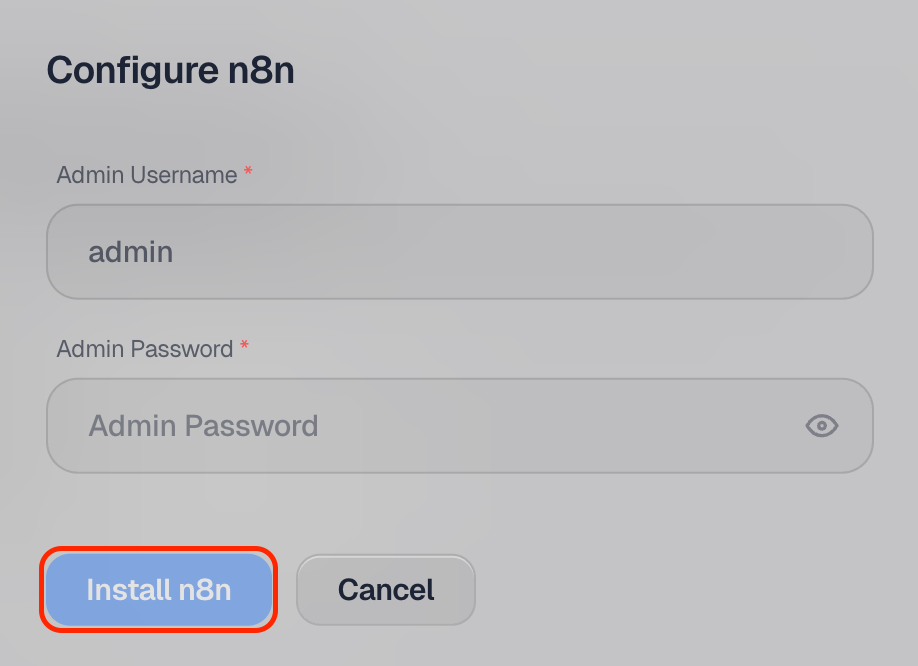
Change the password. Default logins are the same for everyone who installs the app, so once you're in, set your own password in the app's own settings.
Finding an app's settings
Open the app's page in Livinity and look for its settings. That's where you adjust the options the app offers.
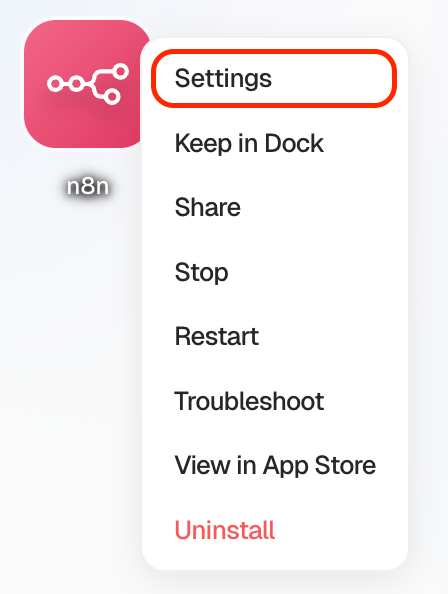
When you change a setting, Livinity restarts the app so the change takes effect — this only takes a moment, and your data is safe.
What you can change
It depends on the app, but settings usually cover the options that app exposes — small configuration choices that change how it behaves. If an app doesn't have much to configure, that's normal; many work great right out of the box.
That's the everyday stuff: get into a new app with its starting login, change that password, and adjust any settings to suit you.