Settings Overview
Settings Overview
Settings is where you make Livinity yours and manage how your computer runs. This page is a quick map of what you'll find there — with links to the details for the bigger topics.
Opening Settings
Open Settings like any other app — from the topbar or your apps. Everything's organized into a list of sections down the side.

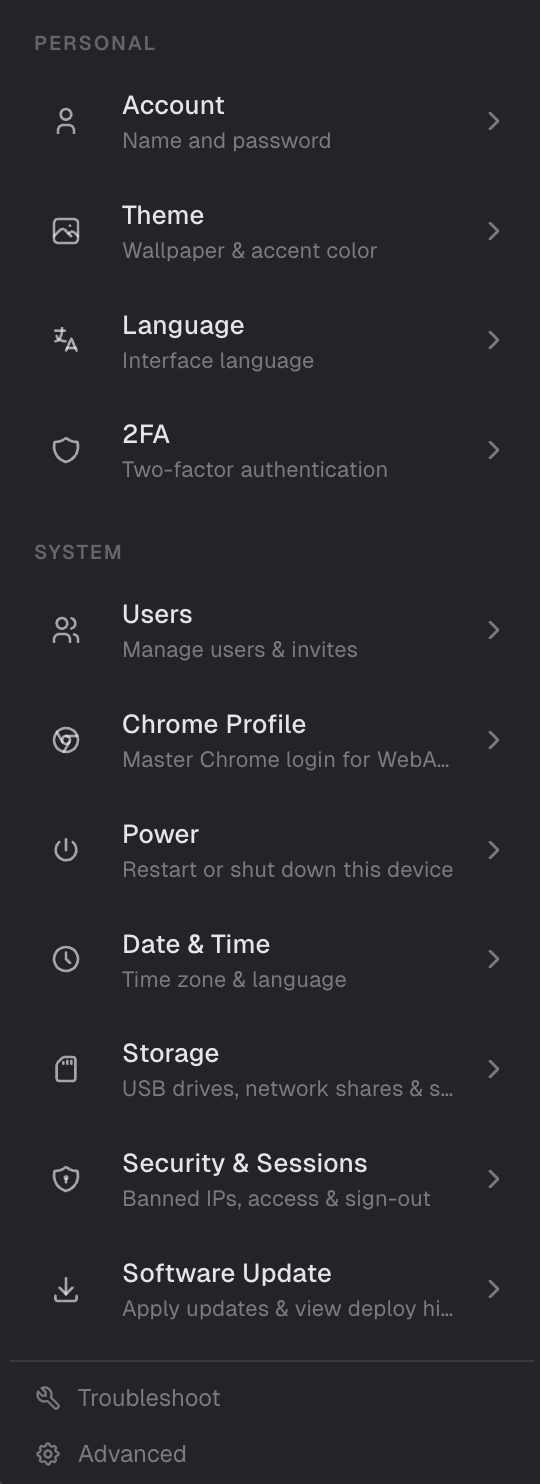
Personal
- Account — your name and password (see Account Settings).
- Theme — your wallpaper, accent color, and light or dark mode (see Wallpaper & Accent Color and Dark Mode & Light Mode).
- Language — your interface language (see Language & Region).
- 2FA — two-factor authentication for extra sign-in security (see Account Settings).
System
- Users — add other people to your Livinity (see Inviting People).
- Chrome Profile — stay signed into websites for web apps (see Staying Signed Into Websites).
- Power — restart or shut down (see Turning Your Server Off & On).
- Date & Time — your time zone and clock format (see Language & Region).
- Storage — add USB drives and connect network shares (see Storage & Drives).
- Security & Sessions — signed-in devices and access (see Security & Sessions).
- Backups — back up and restore your computer (see Backing Up Your Livinity).
- Software Update — keep Livinity up to date (see Updating Livinity).
- MCP Servers — connectors for Liv (see Connecting Liv to Your Tools).
- Troubleshoot and Advanced — diagnostics and power-user controls.
Don't feel you need to touch most of these — the defaults work great. Settings is just there whenever you want to adjust something.
Need a hand? Reach the team at everything@livinity.io.