Creating your Livinity Account
How to create your livinity.io account?
Creating Your Livinity Account
Getting started with Livinity takes just a few minutes. This guide walks you through it step by step — no technical knowledge needed.
Before you start
All you need is an email address you can check right now — Livinity will send you a confirmation link, and your account isn't ready until you click it. That's it. No payment details are needed just to sign up.
1. Start your sign-up
Head to the Livinity sign-up page and look for the Create account box.
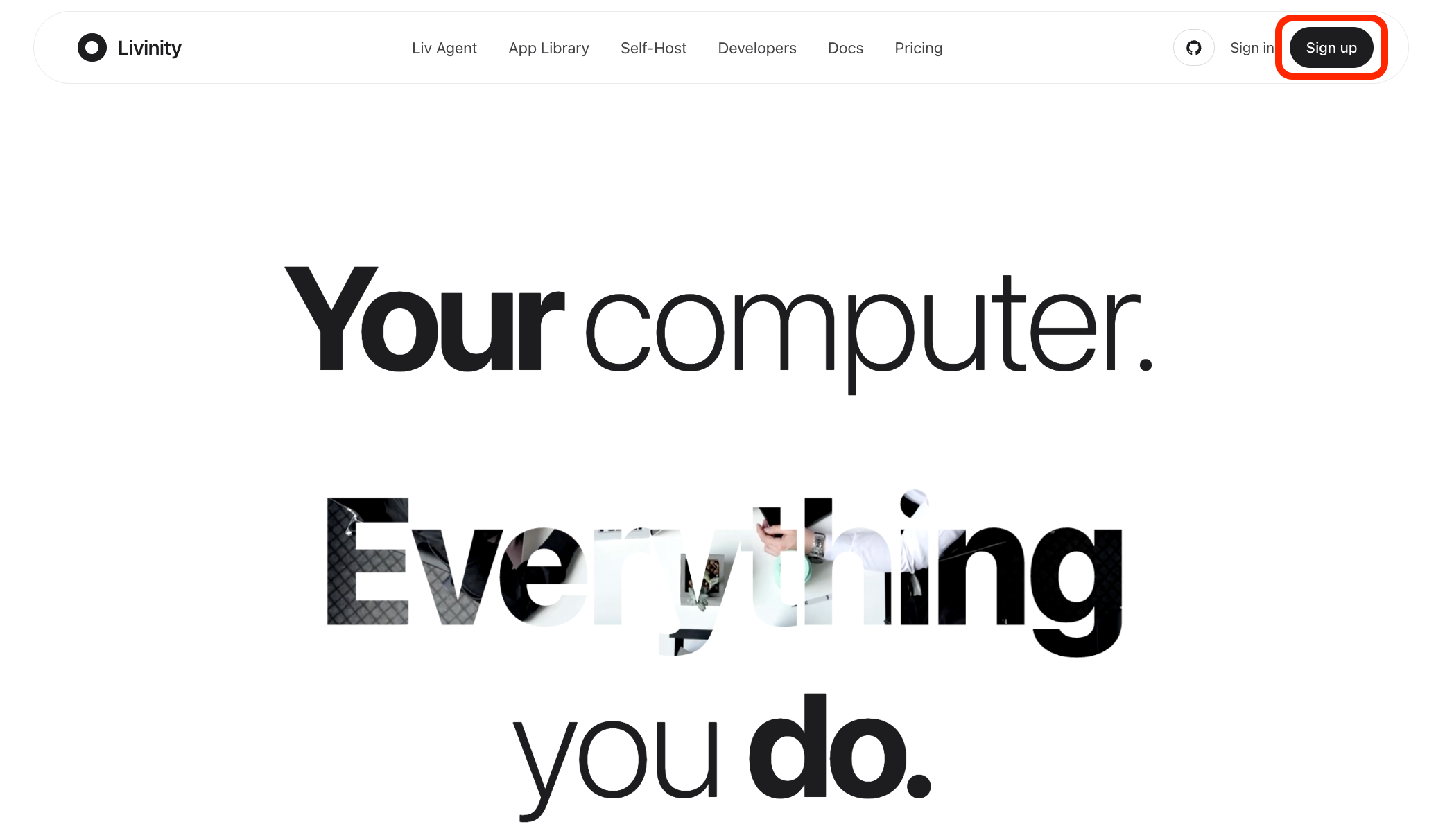
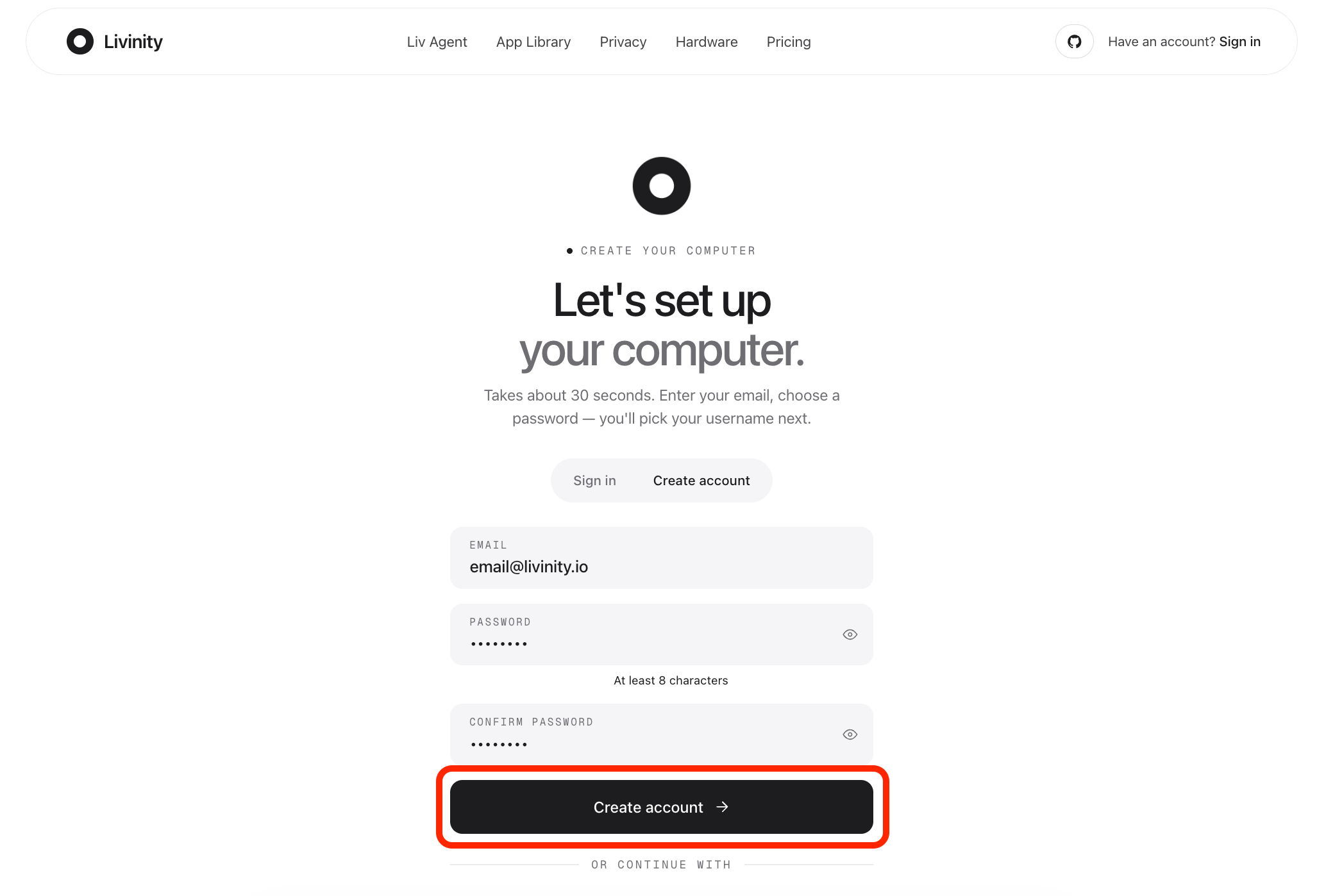
Enter your email address and choose a password (at least 8 characters). Pick something only you would know.
Then click Create account.
2. Check your email
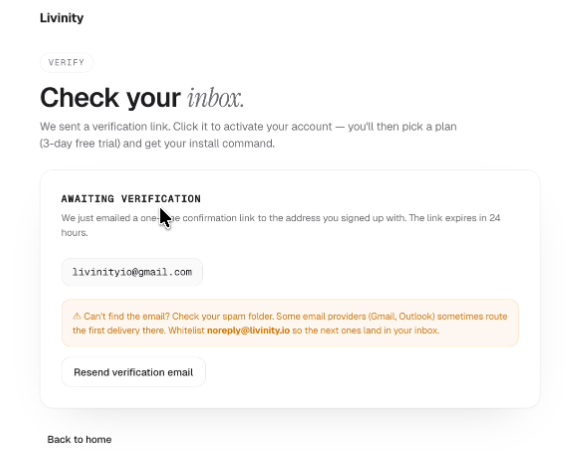
After you submit, you'll see a "check your email" screen. Your account isn't fully created yet — Livinity just needs to confirm your email is really yours.
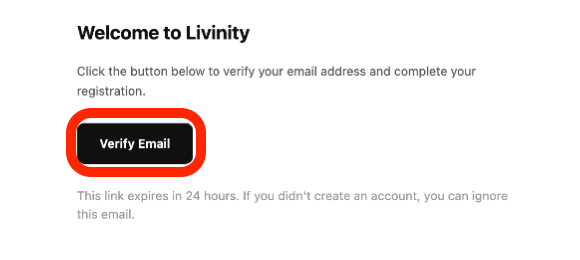
Now open your inbox. You'll find an email from Livinity with a confirmation link.

Don't see it? Check your spam or junk folder. The link stays valid for 24 hours — if it's been longer, you can request a fresh one (see Section 6).
3. Click the link — your account is created
Click the confirmation link in the email. This finishes creating your account and signs you in automatically — no need to log in separately.
4. Pick your username
Next, choose a username. This becomes your own personal Livinity address —
something like yourname.livinity.io. As you type, Livinity checks whether
your choice is available.
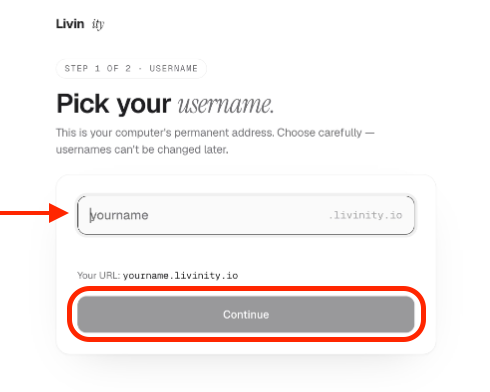
Username tips:
- 3 to 30 characters long
- Lowercase letters and numbers only — no spaces or dashes
- A few common words are reserved, so you may need a second choice
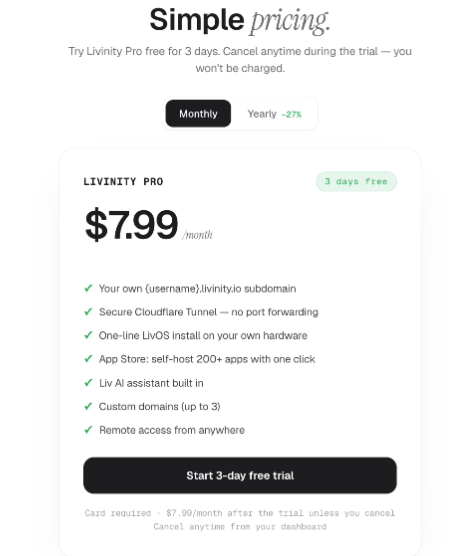
5. Choose your plan
Pick the plan that fits how you want to use Livinity, and you're all set to go.
6. You're in!
That's it — your account is ready, and your dashboard is waiting.
From here you can meet Liv, your assistant, and start exploring the App Library. Welcome aboard!
7. Didn't get the email?
The confirmation email usually arrives within a minute. If it doesn't:
- Check your spam or junk folder.
- Wait about a minute (sometimes it's just slow).
- On the "check your email" screen, click Resend to send a fresh link.
There's a short wait between resends, so give the first one a moment before trying again.
8. Trouble creating your account?
| What's happening | What to try |
|---|---|
| "Email already taken" | You may already have an account — try signing in or resetting your password instead. |
| "Password must be at least 8 characters" | Choose a longer password and try again. |
| The verification email never arrives | Check spam, wait a minute, then click Resend. |
| Your username keeps getting rejected | Use only lowercase letters and numbers, 3–30 characters, and try a different word if it's taken or reserved. |
| The confirmation link says it's expired | Links last 24 hours — request a new one from the "check your email" screen. |
Still stuck? Reach out to support and we'll help you get set up.
A few quick tips
- Use an email you check regularly — that's where account and reset messages go.
- Pick a password that's unique to Livinity.
- Choose a username you'll be happy with going forward.
Welcome to Livinity — we're glad you're here!