Troubleshooting & Diagnostics
Troubleshooting & Diagnostics
Most of the time Livinity just works — but if something's acting up, here's a calm, simple path to sorting it out, from the quick fixes to the deeper tools.
Screenshots: Each numbered slot below is a placeholder. Drop your image into the
media/folder using the filename shown, and it will appear here automatically.
Start with the quick fixes
Nine times out of ten, one of these does it:
- An app is misbehaving? Restart it from its page (see Using Apps and Docker).
- Things feel slow or stuck? Check Live Usage to see if something's maxed out (see Monitoring Your Computer).
- Something's just off? A full Restart of your Livinity clears up a lot (see Turning Your Server Off & On).
Look at the logs
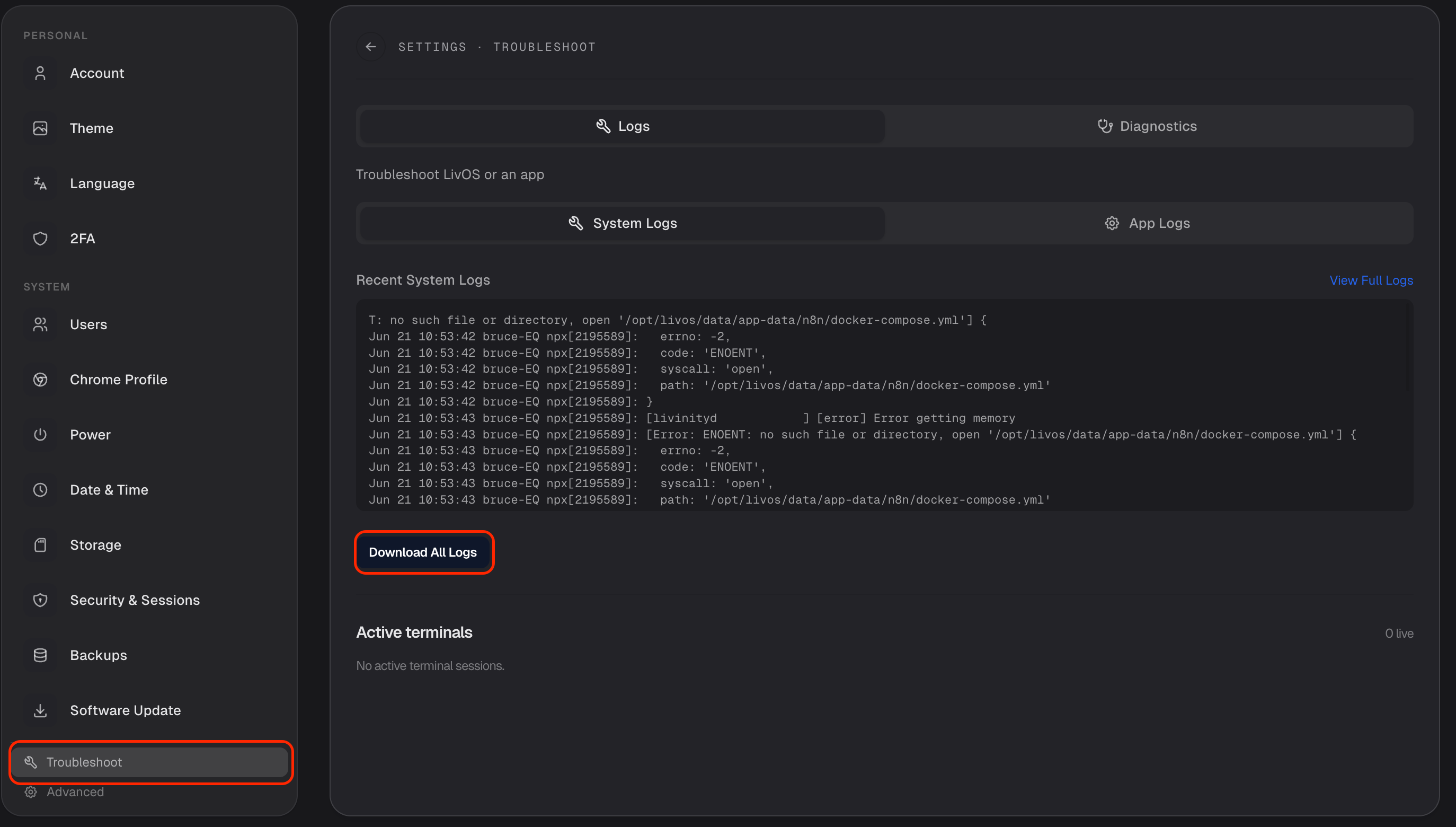
If a quick fix doesn't cut it, head to Settings → Troubleshoot. There you can view logs — both for individual apps and for the system — which often show what's going wrong.
Ask Liv, or tell us
Not sure what a log means? Ask Liv — describe what's happening and it can help you dig in. And if you've hit a genuine bug, send it our way with Report a problem (see Reporting a Bug or Sending Feedback), including anything you saw in the logs.
Take it one step at a time — quick fix first, logs second, a helping hand third — and most problems untangle pretty quickly.