Account Settings
Account Settings
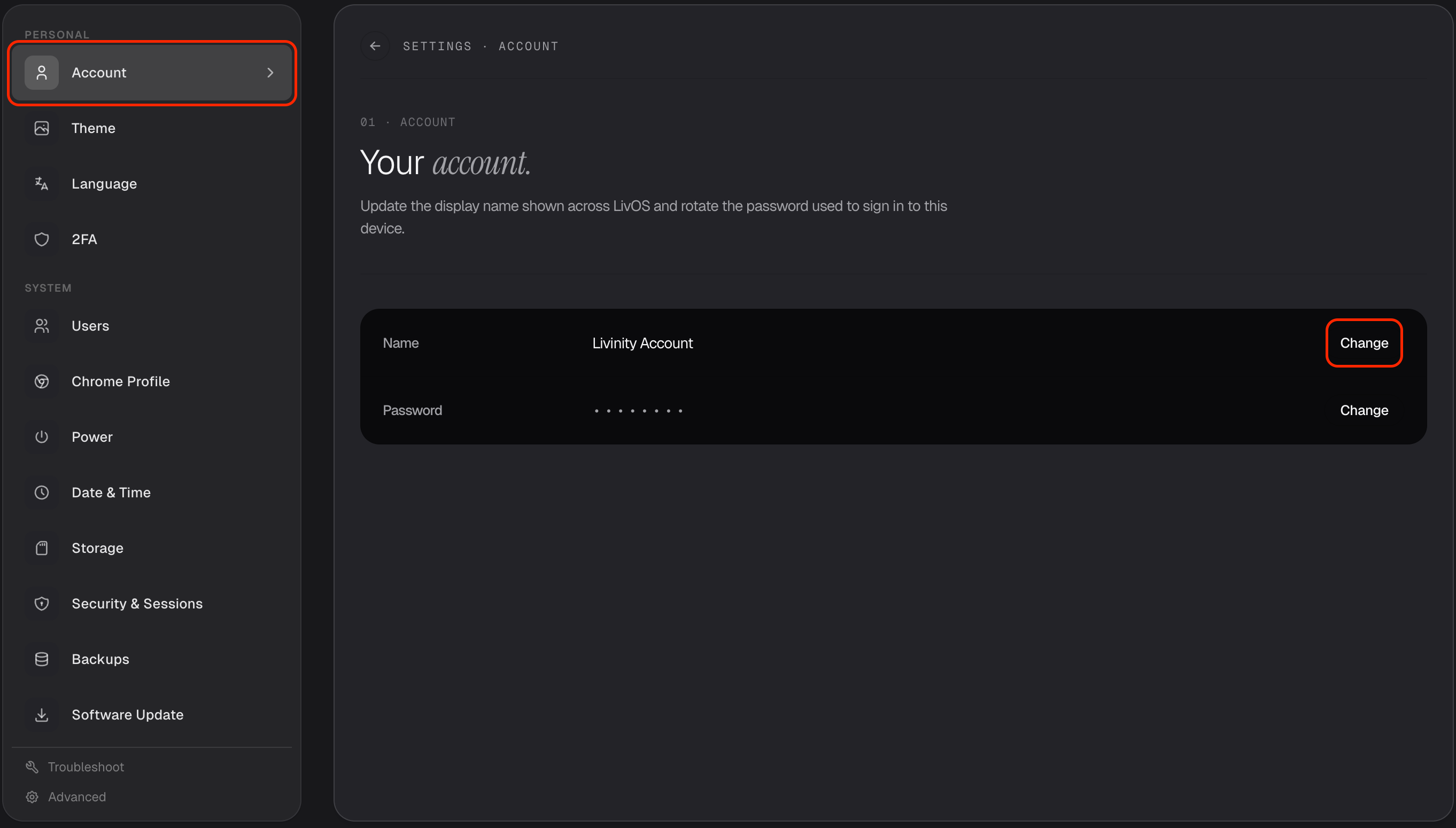
Your Account section is where you manage the basics of your login — your name, your password, and extra security. You'll find it in Settings → Account.
Change your name
Open Settings → Account and update your name anytime — it's how Livinity greets you and labels your account.
Change your password
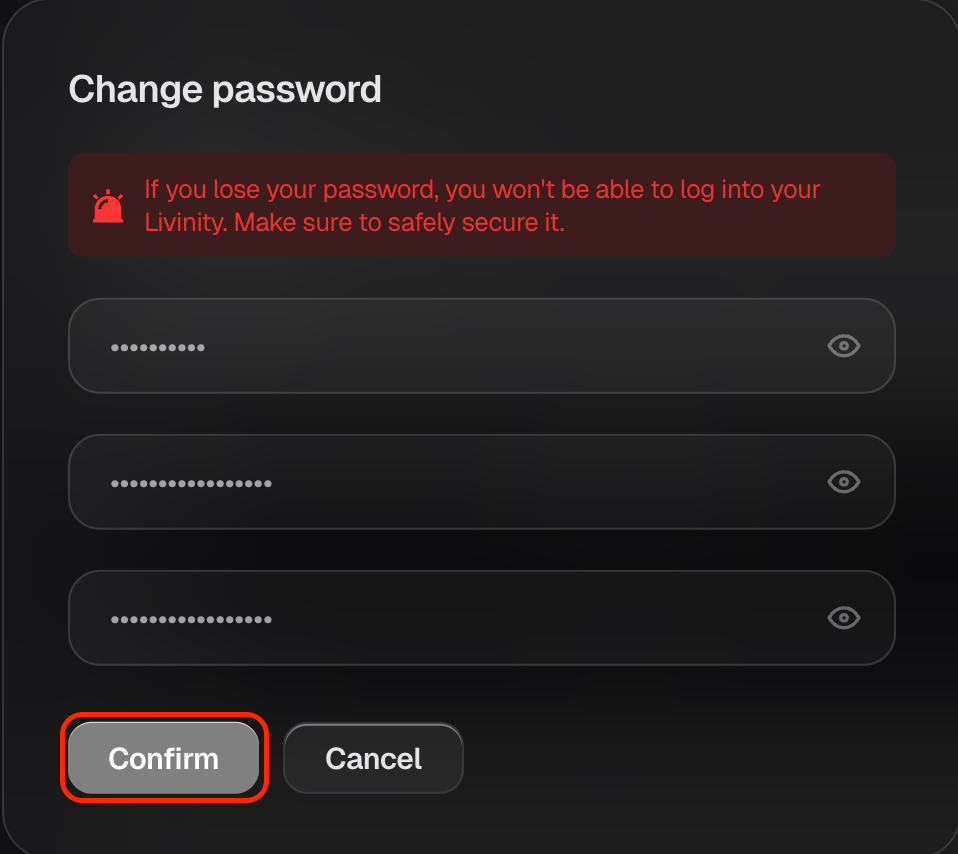
In the same place, you can set a new password. You'll enter your current one, then your new one, and you're done.
Turn on two-factor authentication
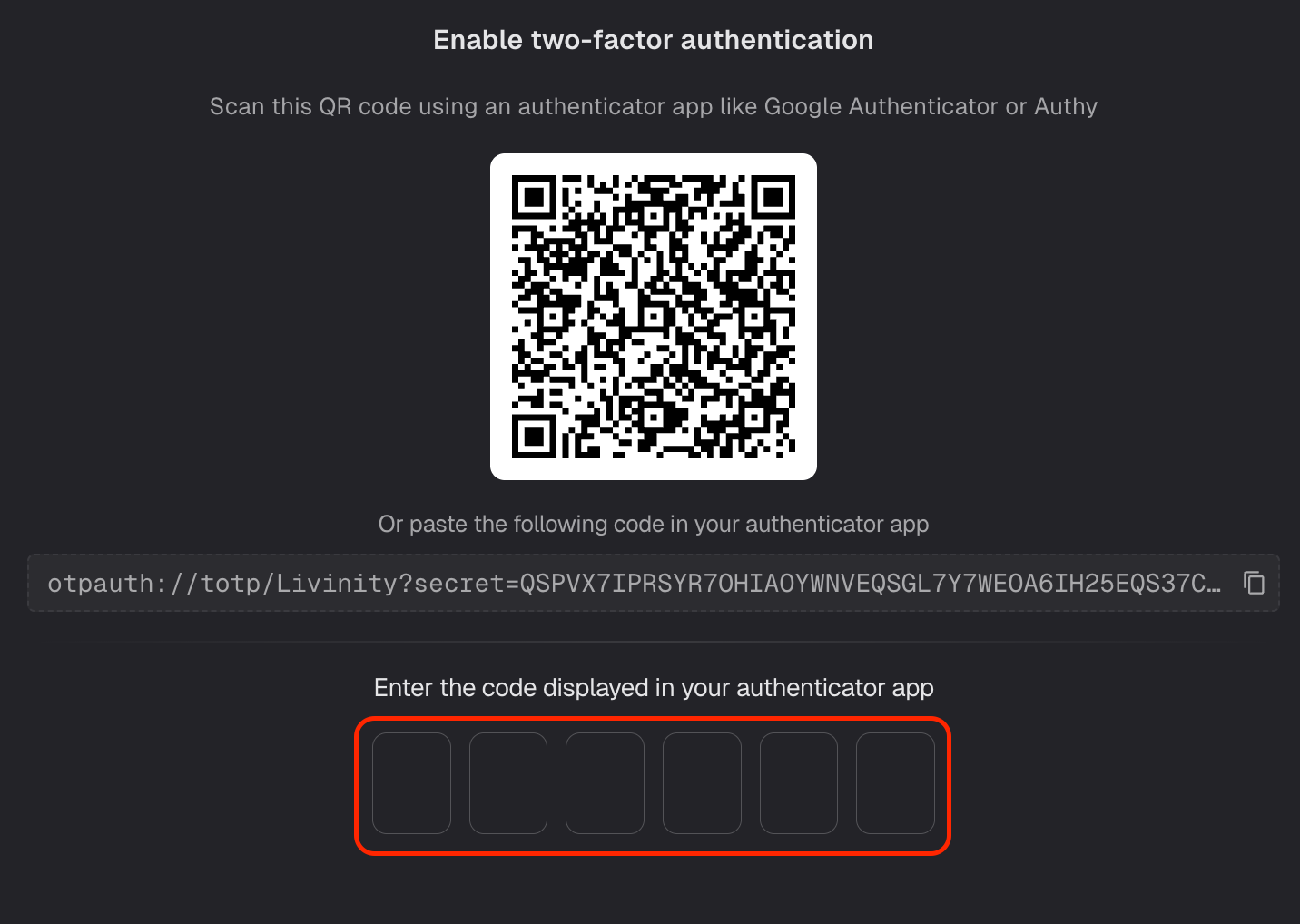
For extra security, turn on two-factor authentication (2FA) — it has its own 2FA section in Settings. With it on, signing in also asks for a quick code from an authenticator app on your phone — so even if someone knew your password, they couldn't get in.
To set it up, scan the code shown with your authenticator app, then enter the 6-digit code it gives you to confirm.
Keep your name current, use a strong password, and switch on two-factor — that's your account well looked after.