Signing In to Your Livinity Account
Signing In to Your Livinity Account
Signing In to Livinity
Welcome back! This guide walks you through every way to sign in to your Livinity account, step by step. No technical knowledge needed — just follow along.
Screenshots: Each numbered slot below is a placeholder. Drop your image into the
media/folder using the filename shown, and it will appear here automatically.
Before you start
You'll need a Livinity account, and your email must be verified. If you just signed up and haven't clicked the verification link in your inbox yet, do that first — see Section 3. Once that's done, you're ready to sign in.
1. Sign in with your email and password
This is how you sign in to Livinity.
Step 1. Go to livinity.io/login. You'll see the sign-in box.
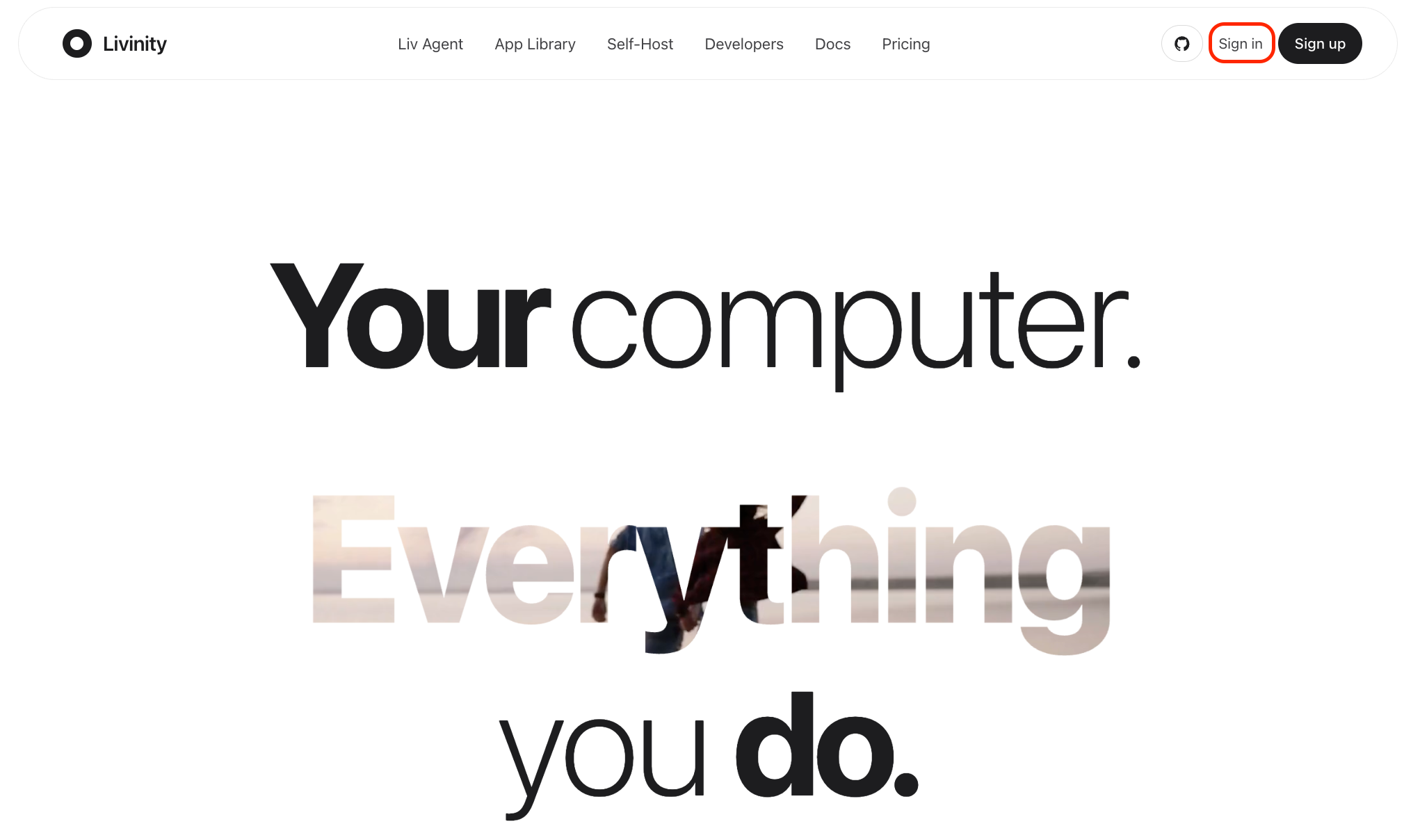
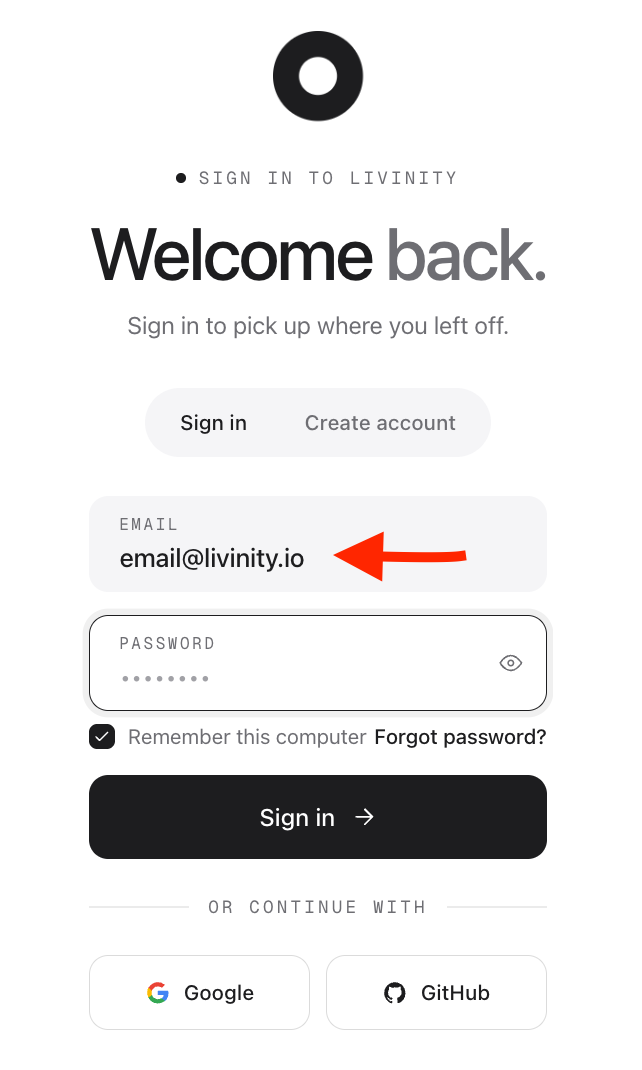
Step 2. Type in the email address you signed up with.
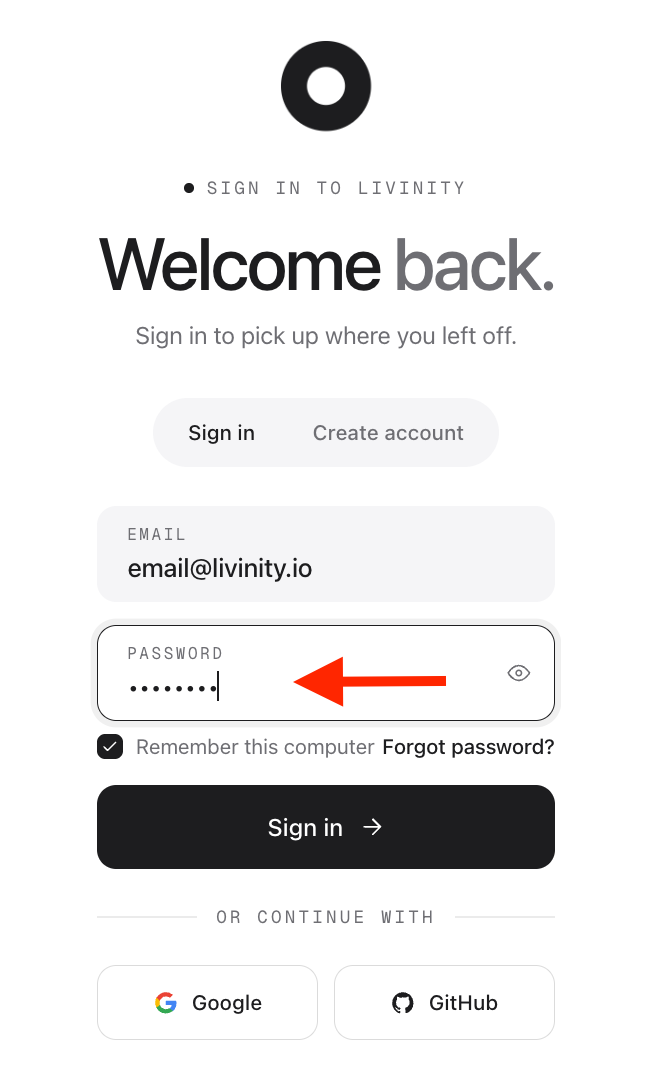
Step 3. Type in your password.
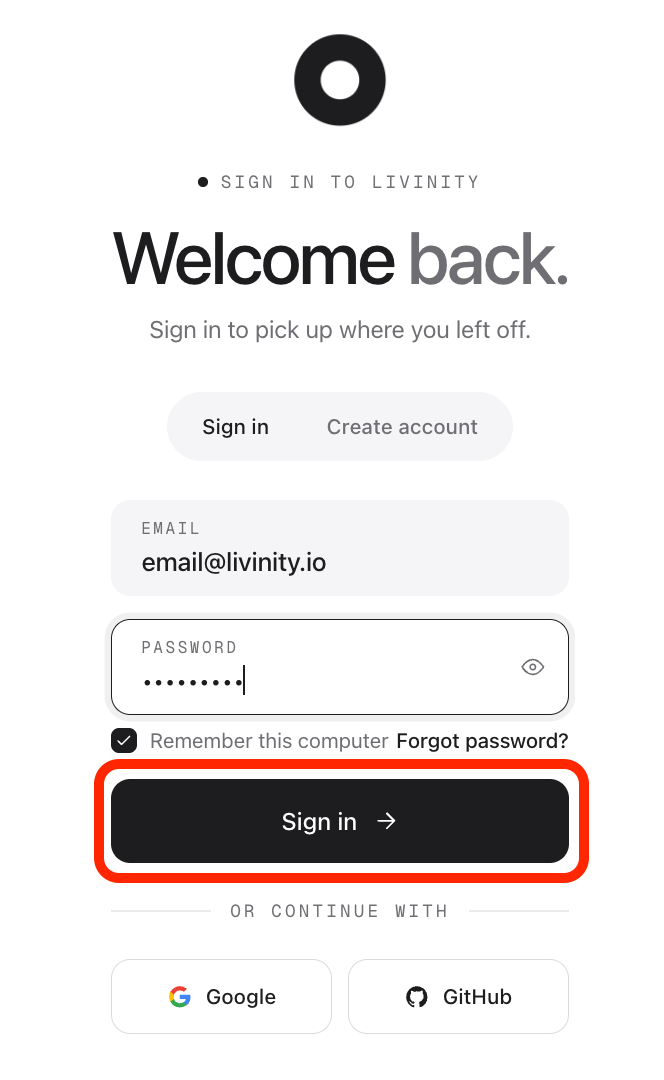
Step 4. Click Sign in. That's it — you'll land on your dashboard.
Livinity keeps you signed in for about a month, so you won't have to do this every time you visit.
2. Forgot your password?
No problem — you can reset it in a couple of minutes.
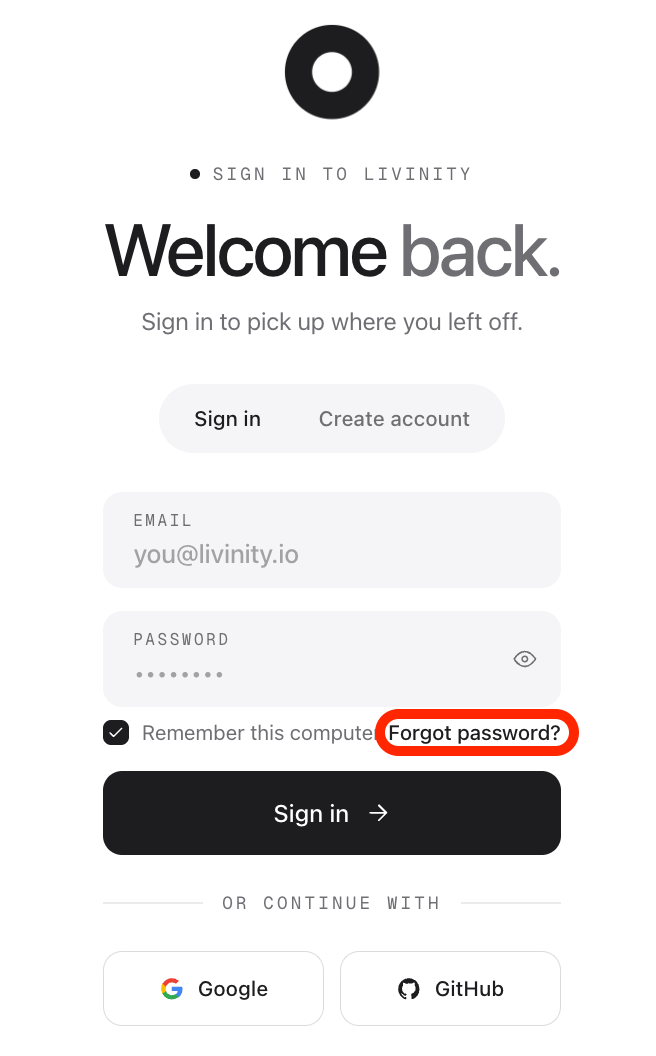
Step 1. On the login page, click Forgot password?
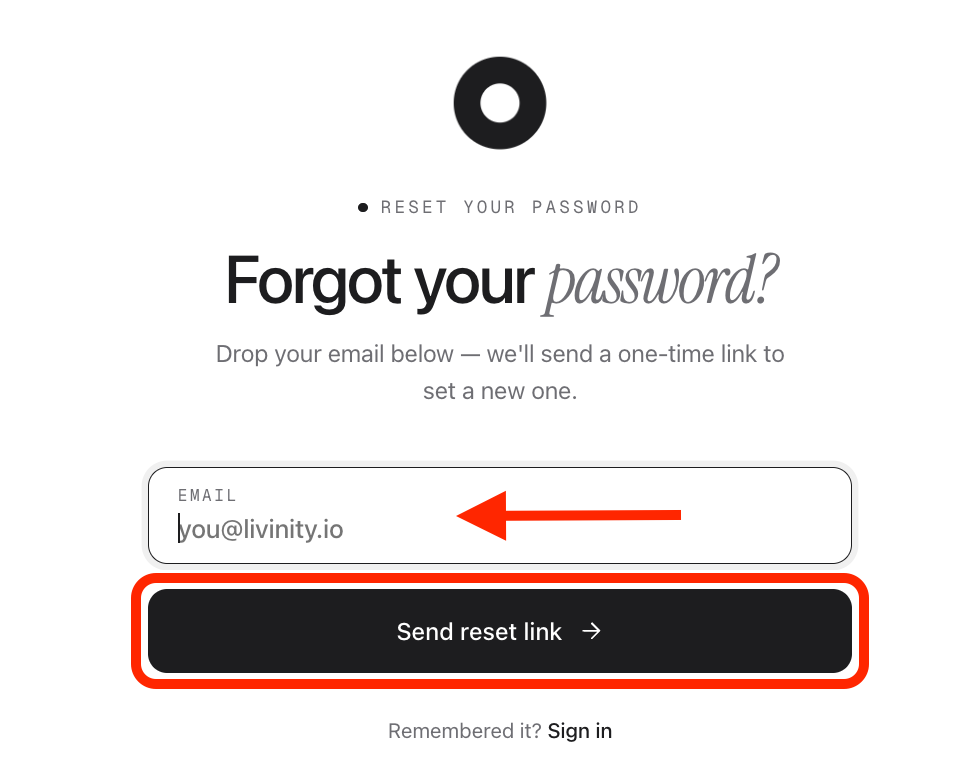
Step 2. Enter your email address and submit.
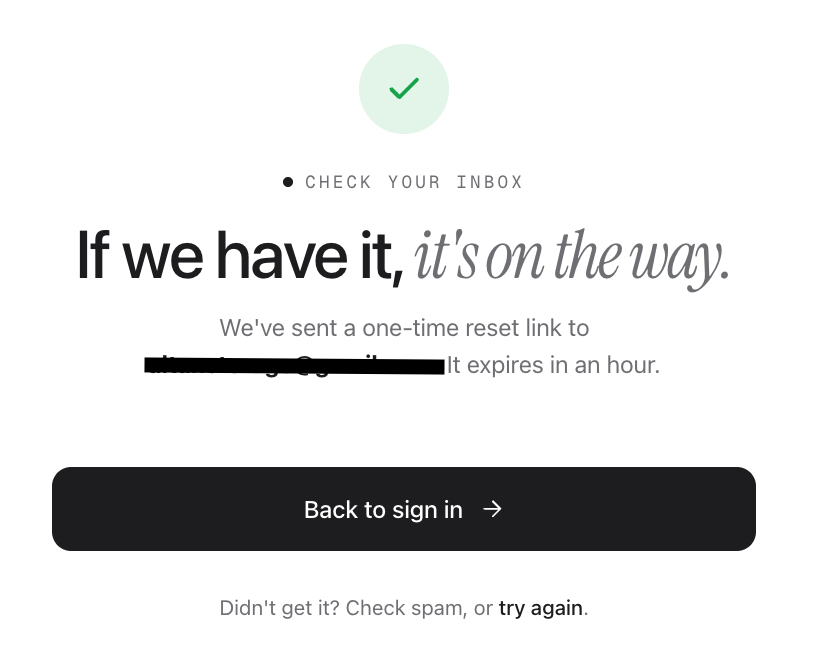
Step 3. You'll see a confirmation message. (You'll see the same message whether or not the email is registered — this is on purpose, to keep accounts private.)
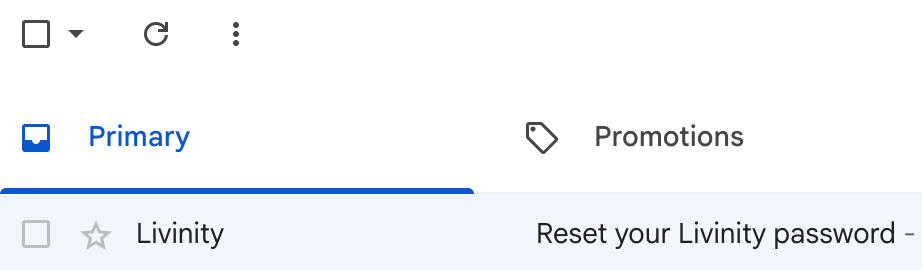
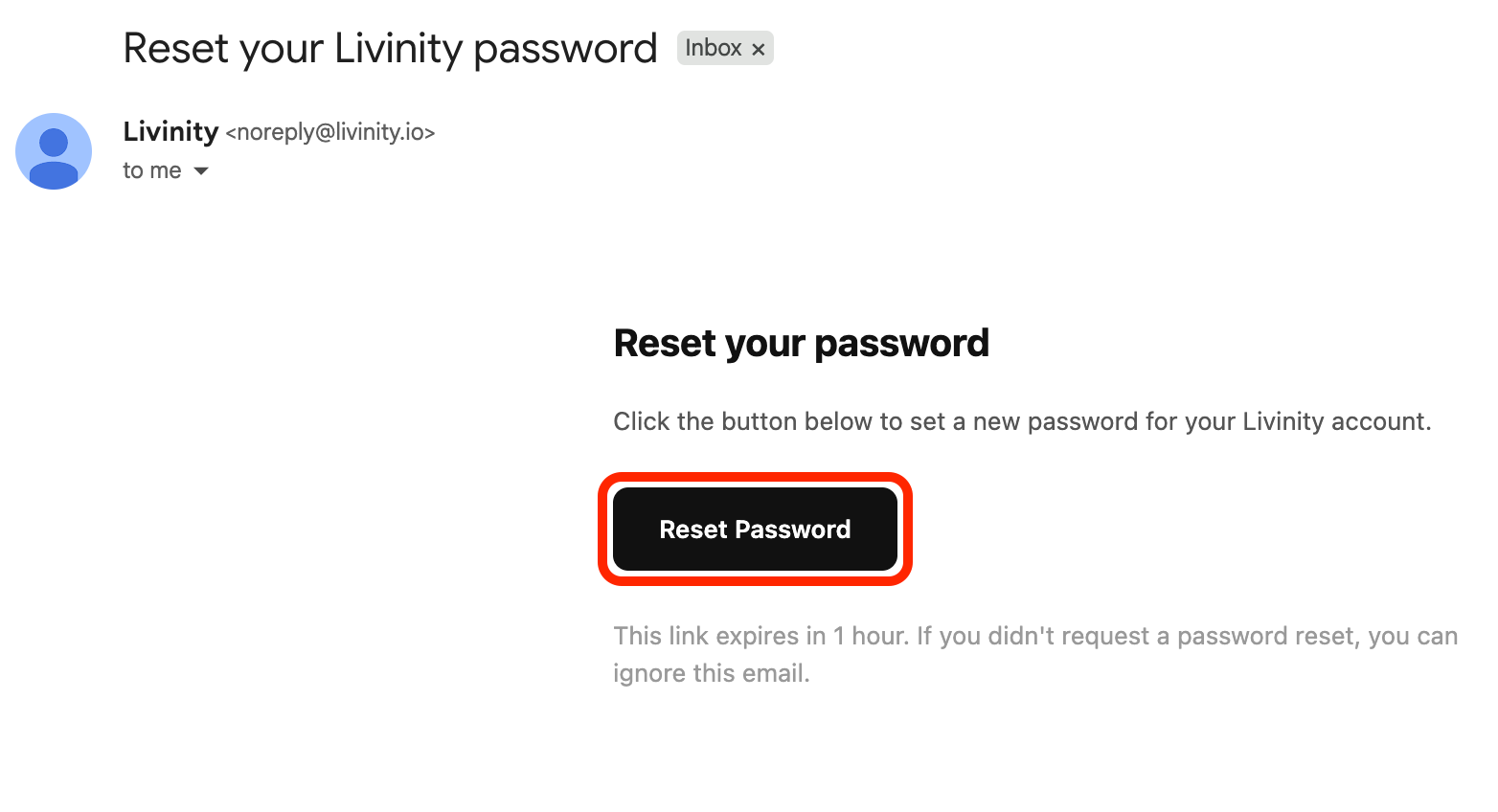
Step 4. Open the email and click the reset link. It takes you to a page where you choose a new password (at least 8 characters).
Step 5. Choose your new password and re-type it below. Click reset password whenever you are ready!
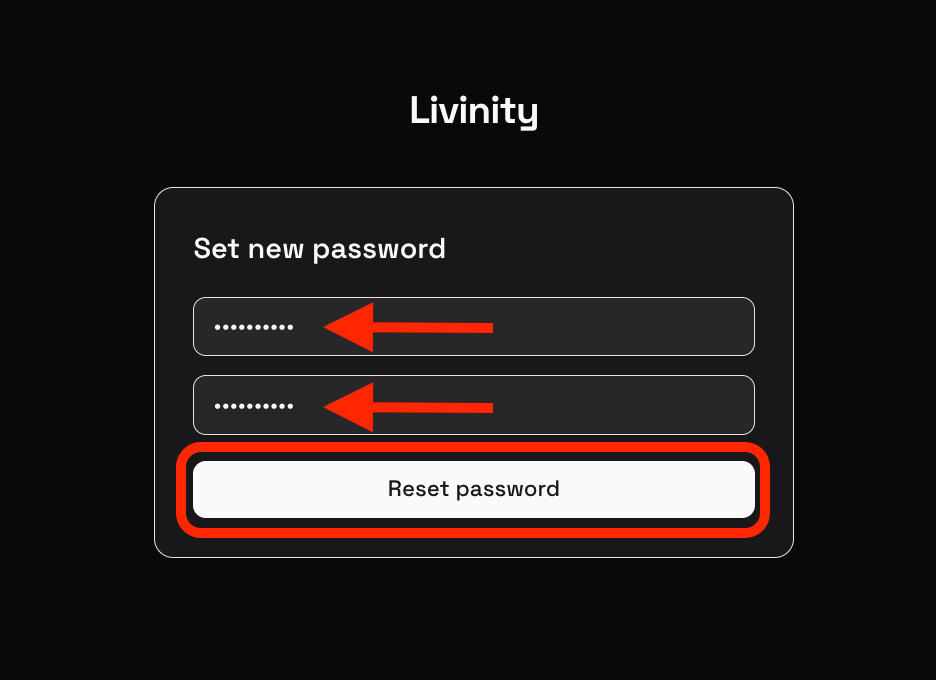
Step 6. Save it, then sign in with your new password.
Heads up: Resetting your password signs you out everywhere, on every device. Just sign back in with the new password. The reset link works for 1 hour, so use it soon after you request it.
6. Trouble signing in?
Here are the most common hiccups and how to fix them.
| What's happening | What to try |
|---|---|
| "Invalid email or password" even though you're sure it's right | Make sure you've verified your email (check your inbox). Double-check for typos and caps lock. |
| You never got the verification or reset email | Check your spam/junk folder, wait about a minute, then click Resend. |
| You got signed out of everything unexpectedly | That happens after a password reset — just sign back in with your new password. |
| You're stuck on the "verify your email" screen | Click the link in the email (check spam), or resend it. The account isn't active until the email is verified. |
Still stuck? Reach out to support and we'll help you get back in.
A quick note on staying safe
- Livinity keeps you signed in for about a month, so you rarely have to log in again on your own device.
- Always sign in from the real livinity.io address.
- If you're on a shared or public computer, log out when you're done.
That's everything you need to sign in. See you inside!