The App Library
The App Library
The App Library is where Livinity really opens up: 200+ apps you can install and run on your own computer with a click — photo galleries, note-takers, media servers, dev tools, AI apps, and much more. Everything runs on your hardware, and it's yours. This page shows you how to find, install, and open apps.
1. Open the App Library
From your dashboard, open the App Library. You'll see featured picks up top and apps grouped into categories like Files, Media, Networking, AI, Developer, Automation, Finance, Social, and crypto.
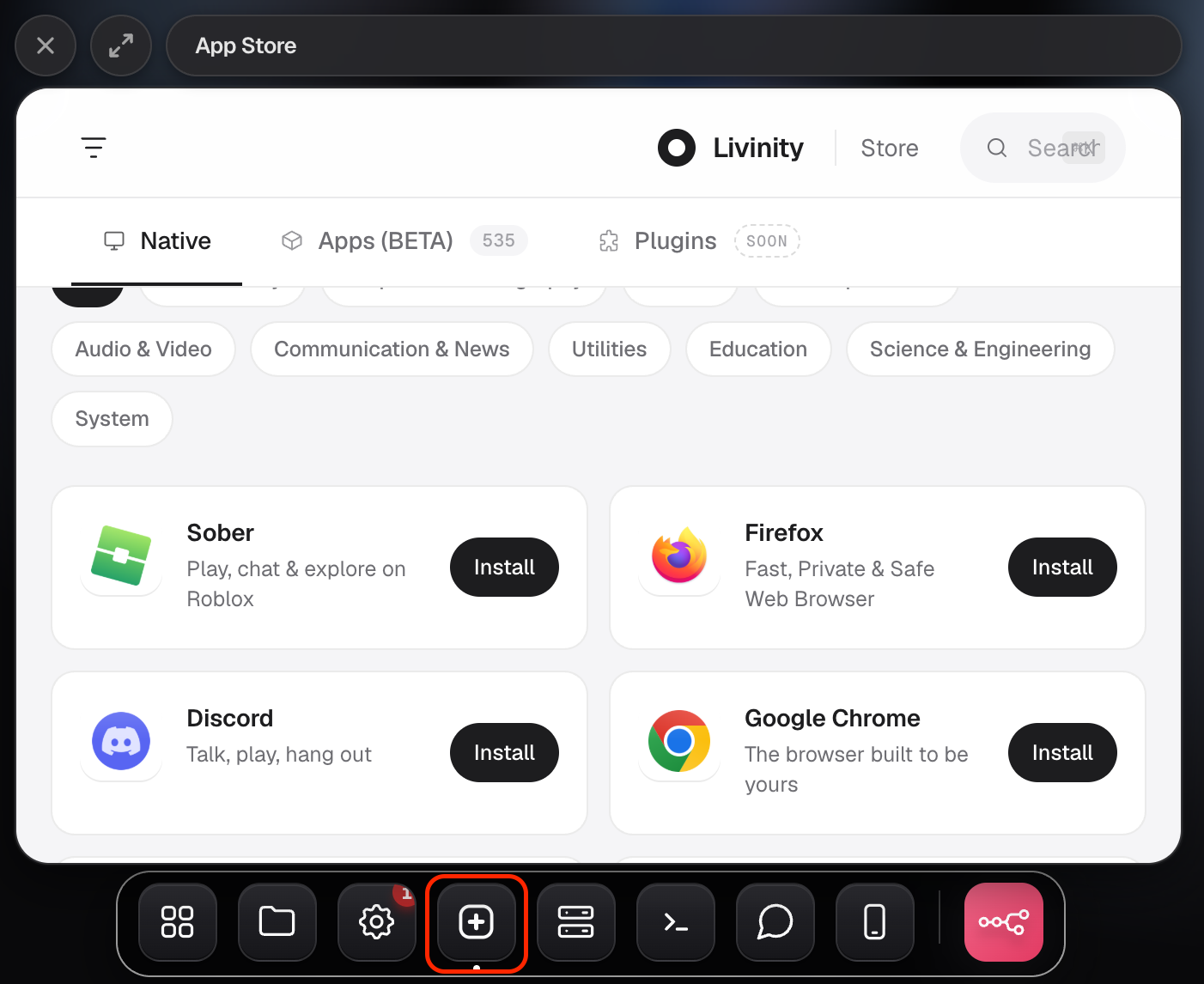
2. Open an app to learn about it
Click an app to open its page. There you'll find a description, screenshots, what's new in recent versions, and anything the app needs to run.
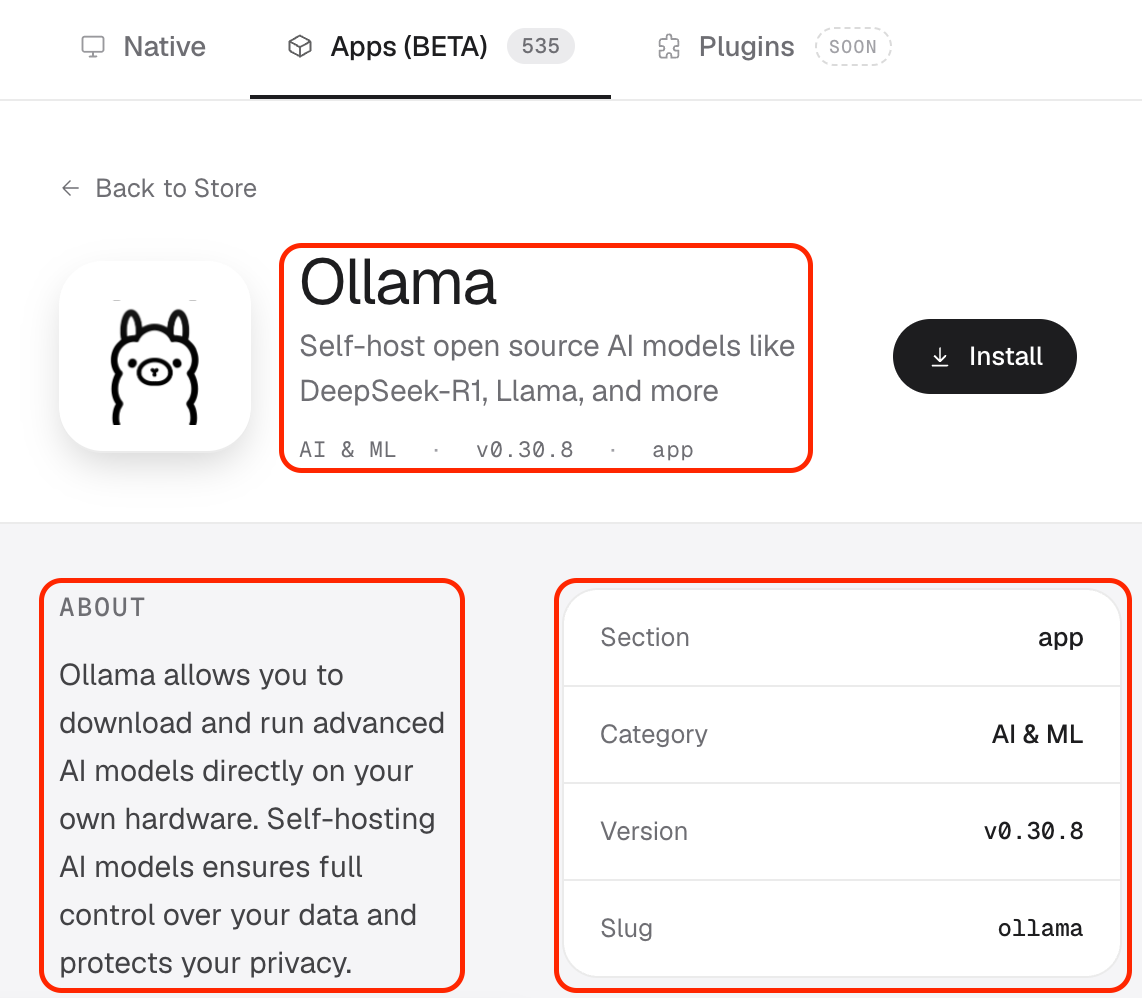
3. Install it
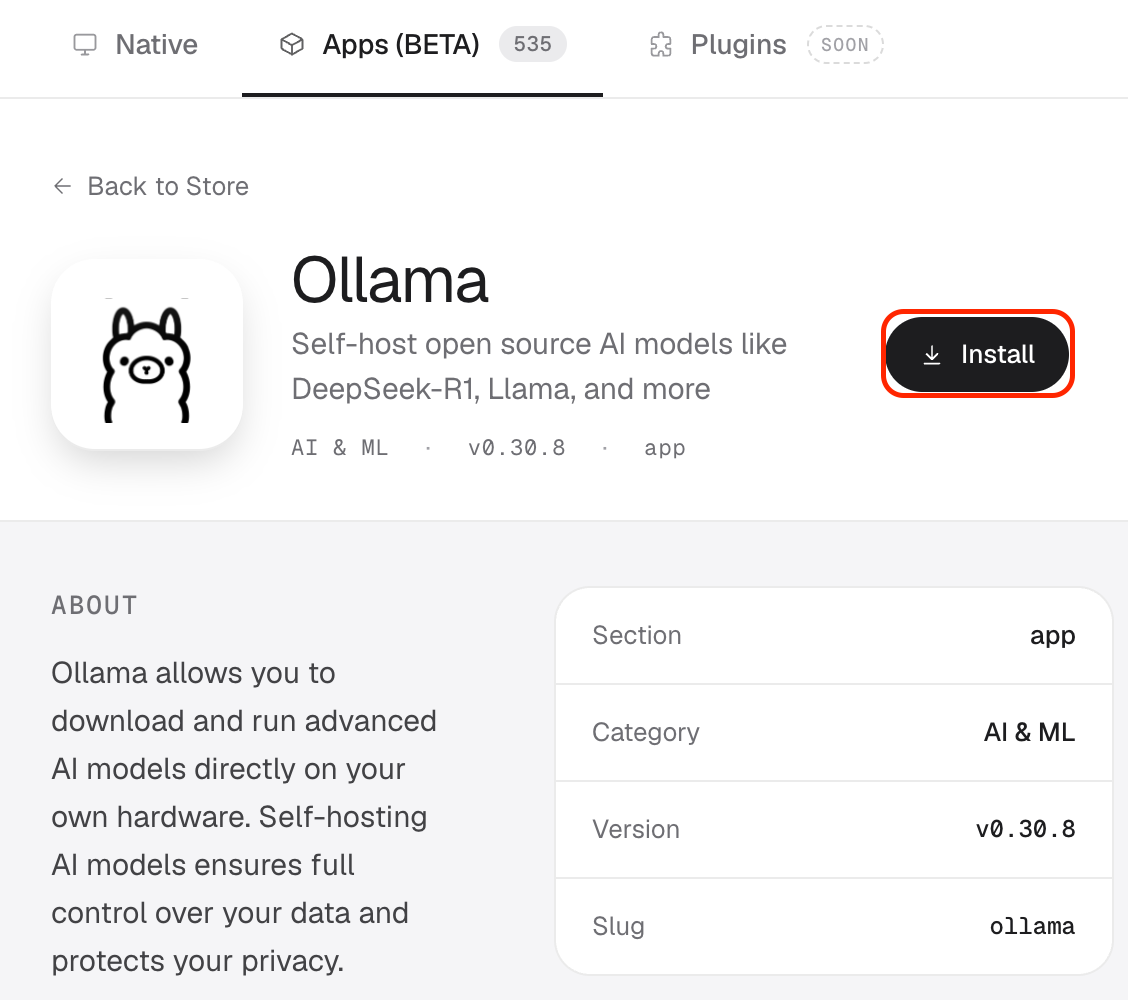
When you're ready, click Install. Livinity sets the app up for you. A few things you might see along the way:
- Dependencies: some apps rely on another app (like a database). Livinity offers to set those up too.
- Default login: some apps come with a starting username and password — Livinity shows you these so you can sign in the first time.
- AI apps: some can use your Claude subscription, so you don't need to juggle separate keys.
4. Open your app
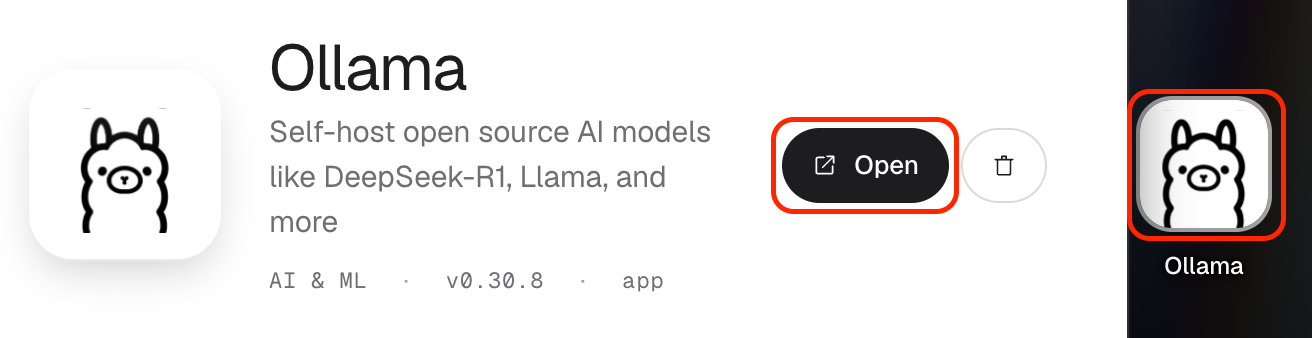
Once it's installed, click Open to launch it. Your installed apps live on your dashboard, ready whenever you need them.
That's the App Library. Install a few apps, open them from your dashboard, and start making your Livinity your own.